An AI-powered app that effortlessly reads text from videos, allowing you to format and customize the text uniquely and add it as embedded subtitles directly onto the video.
Supported languages so far and daily added:
English, Arabic, Czech, Finnish, French, German, Hindi, Italian, Persian, Russian, Spanish, Swedish,Turkish, Ukrainian.
AI Cap can be downloaded from google play from here
Using AI Cap to generate captions in videos is straight forward and could be summarize in the following steps
- Selecting the video
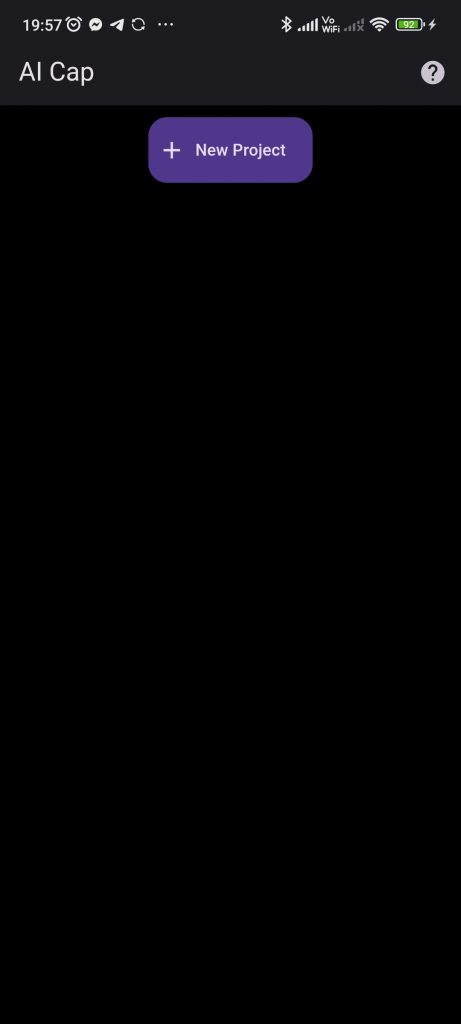
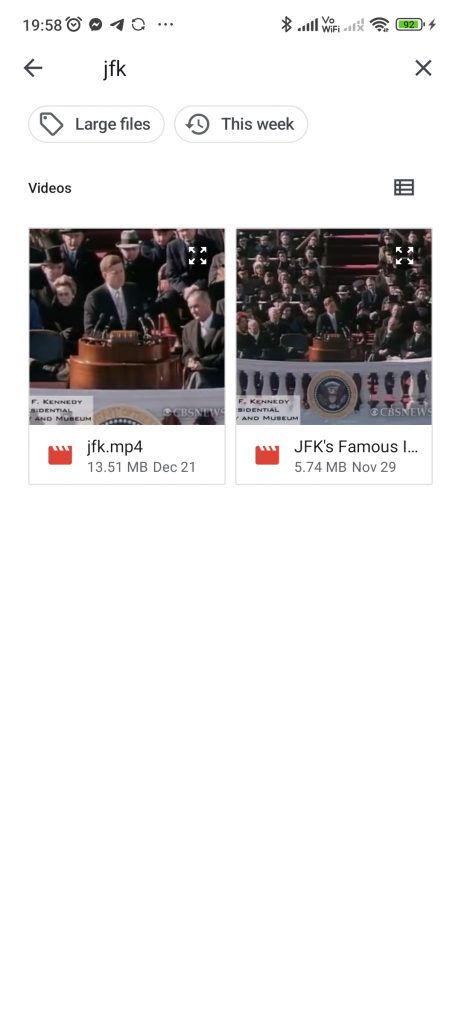
Click on New project and select the video you want to use
2. Select the video language
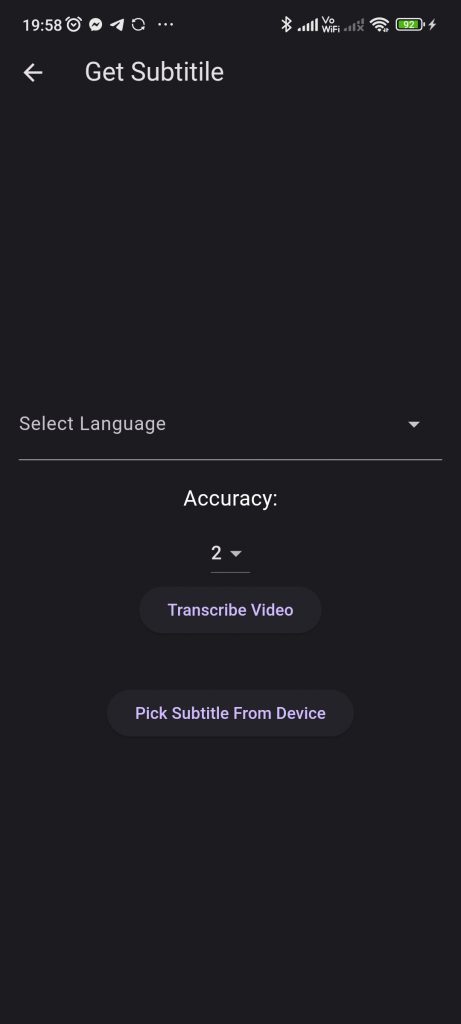
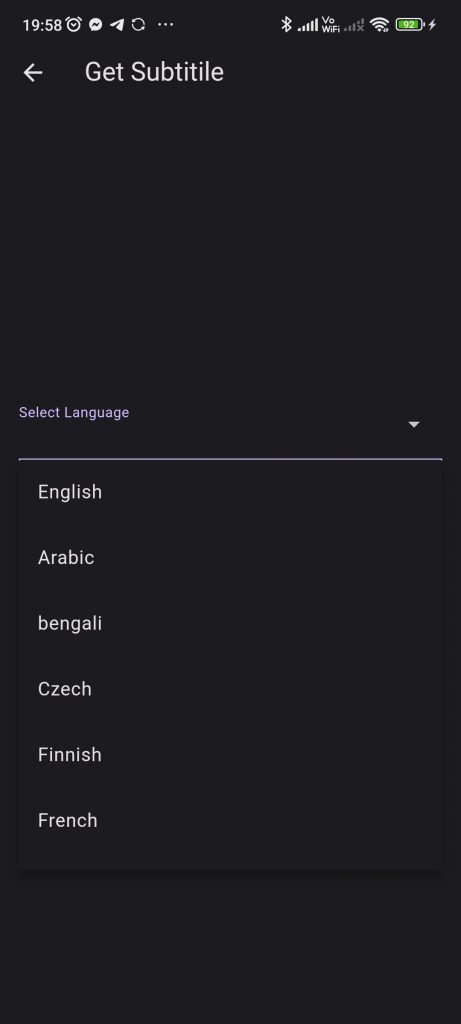
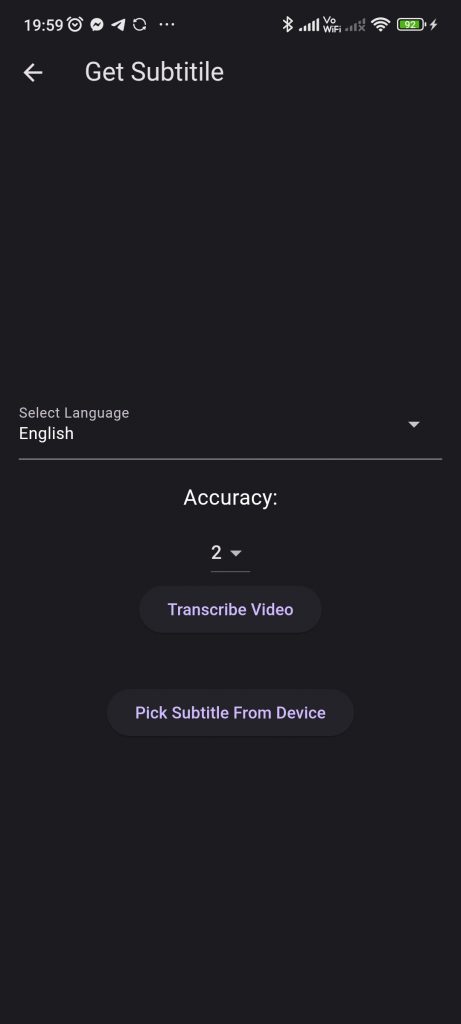
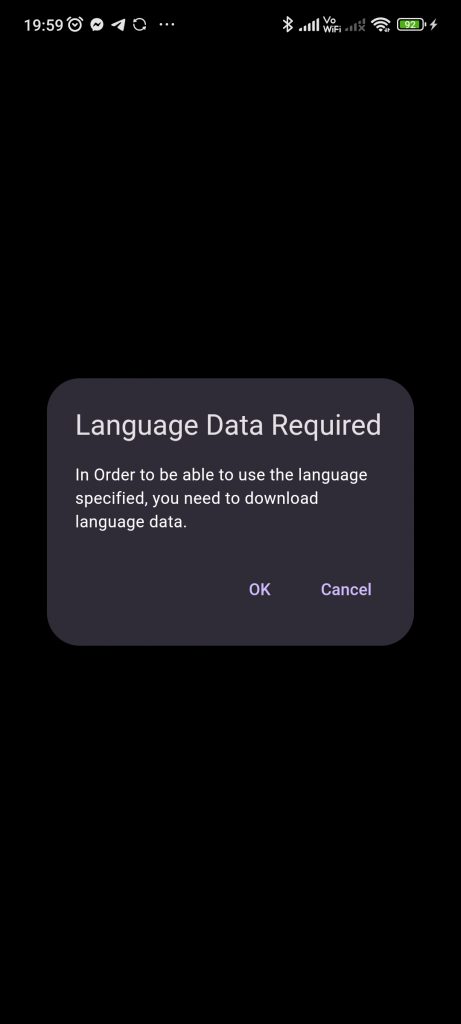
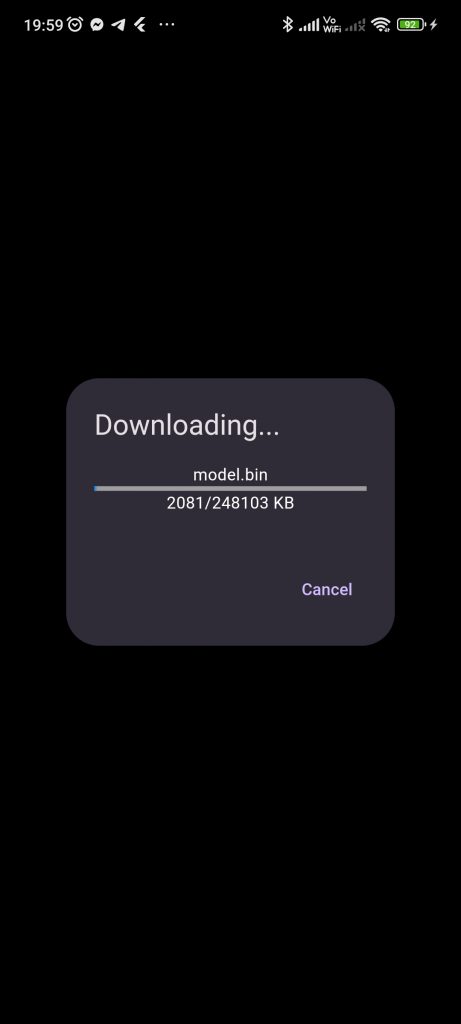
After choosing a language, click on “Transcribe Video.” The application will verify whether the selected language requires downloading, prompting you to download the model. This step is crucial as AI Cap operates an AI model locally to transcribe speech and recognize text. This approach enables us to provide the app to you at no cost, as there is no requirement for resource-intensive processing on a server, which would otherwise incur processing time expenses.
you can also choice to import an SRT file from another source in case you already have a generated SRT file.
3. Checking Wording and timing
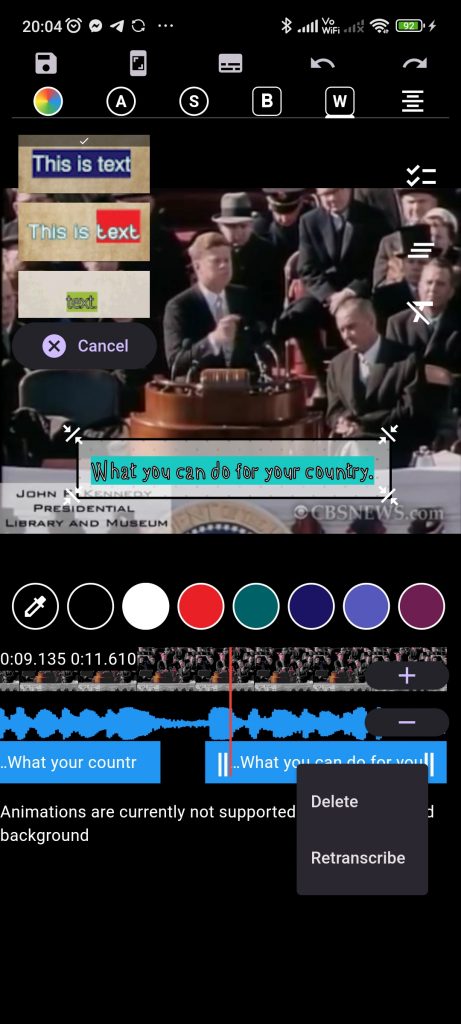
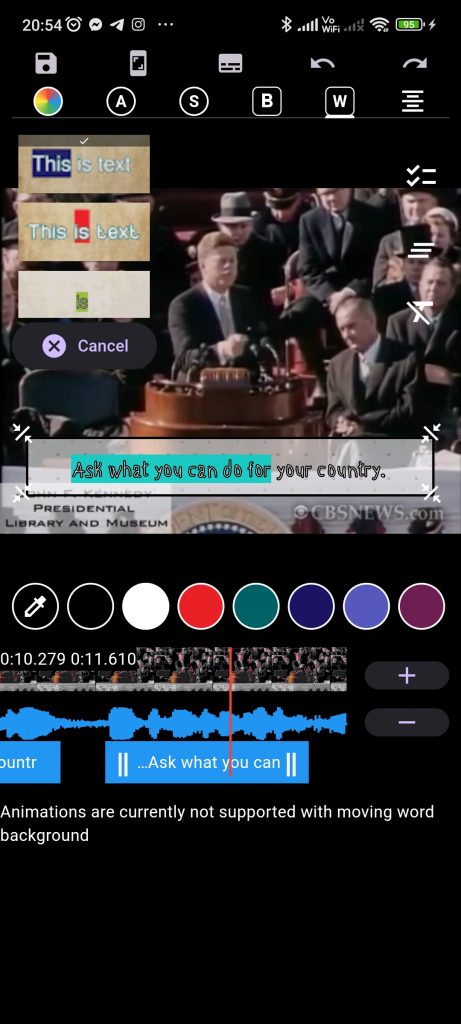
once the model is downloaded, the app will start to find the sentences and transcribe the video. Accuracy could reach 90% However, you still might need to correct some wording and sentences timing. if the timing is correct and the wording have errors you can easily click on the text and correct the spelling
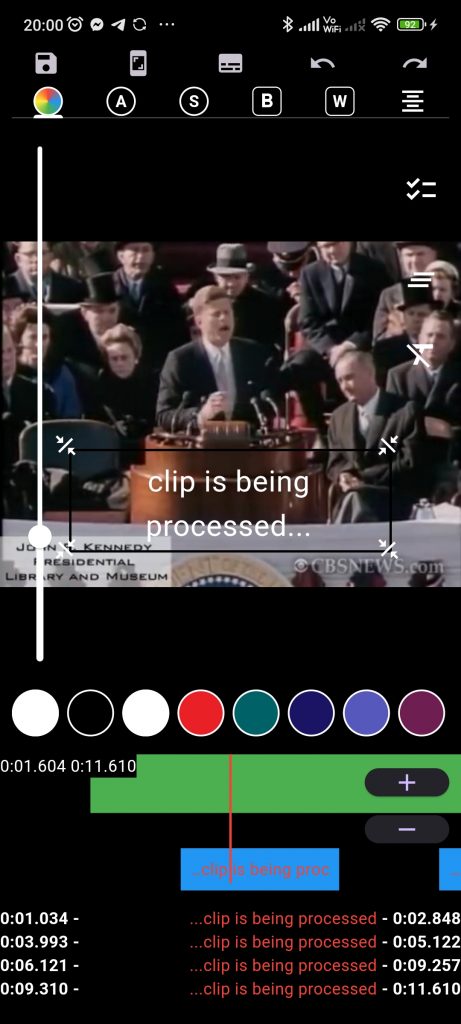
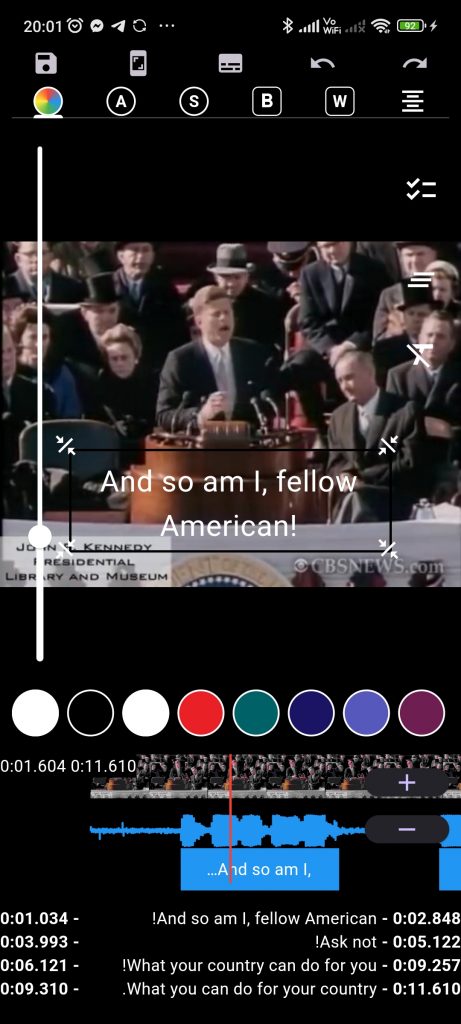
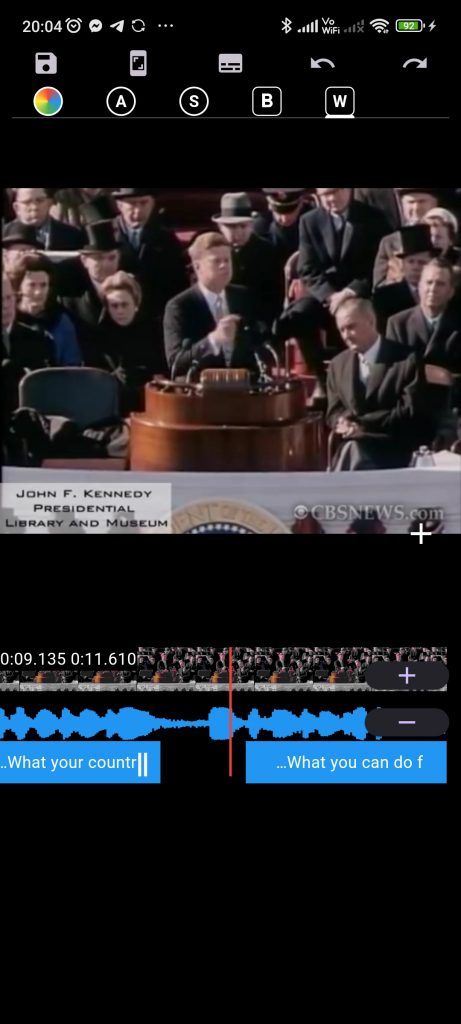
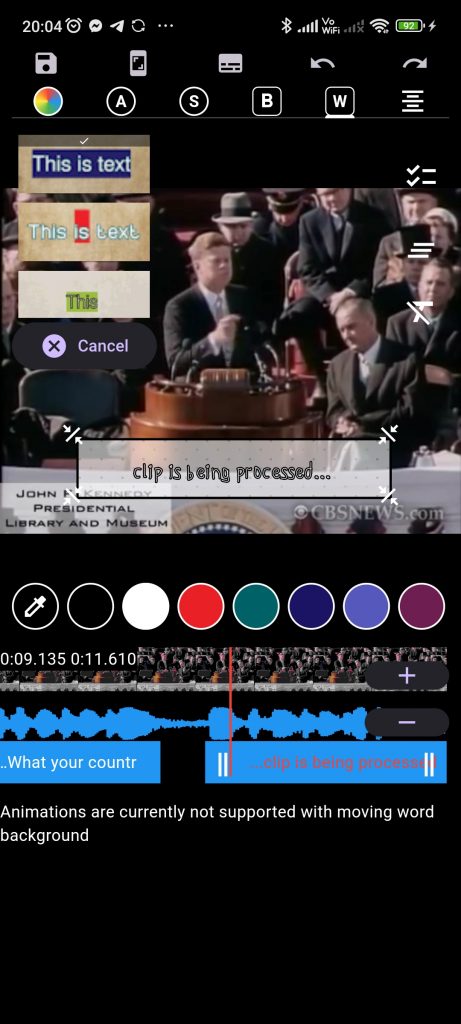
if there are some sentences which are not optimum in timing you can click on the subtitle in the time line and drag the edges to correct the timing. you could also try to re transcribe the sentence again
4. Stylize the video
. Before that is done, you can already start stylizing the video
So far There are plenty options to Stylize the video which includes
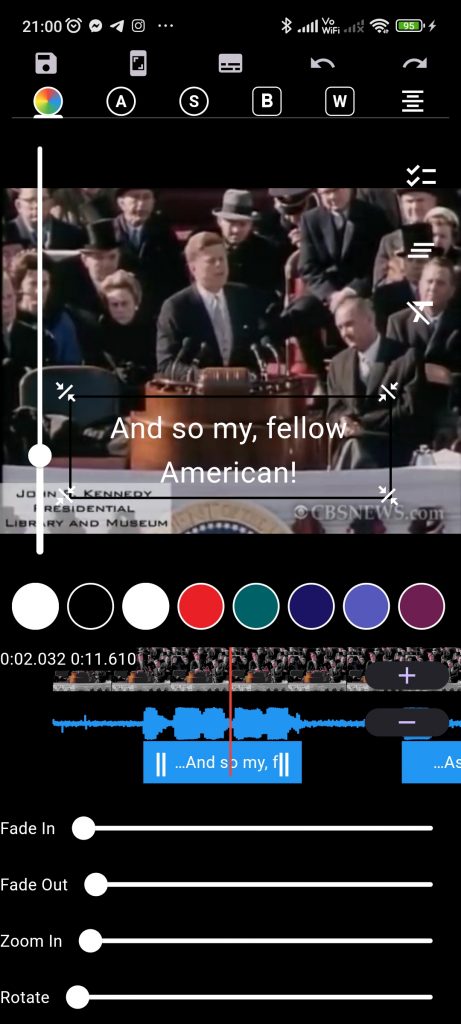
Font Size
to change font size change the slider on the left side of the color wheel tab or the font tab
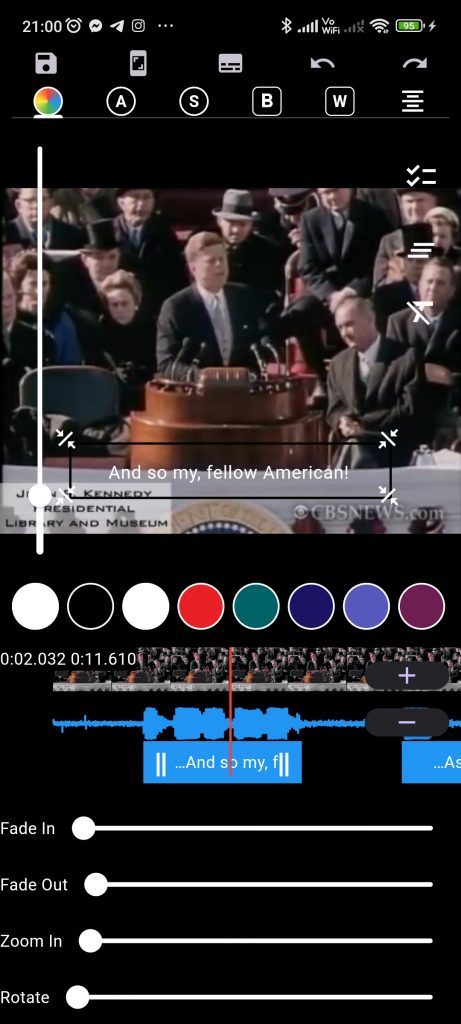
Font Color:
from the Color wheel tab select the color to apply it to the front
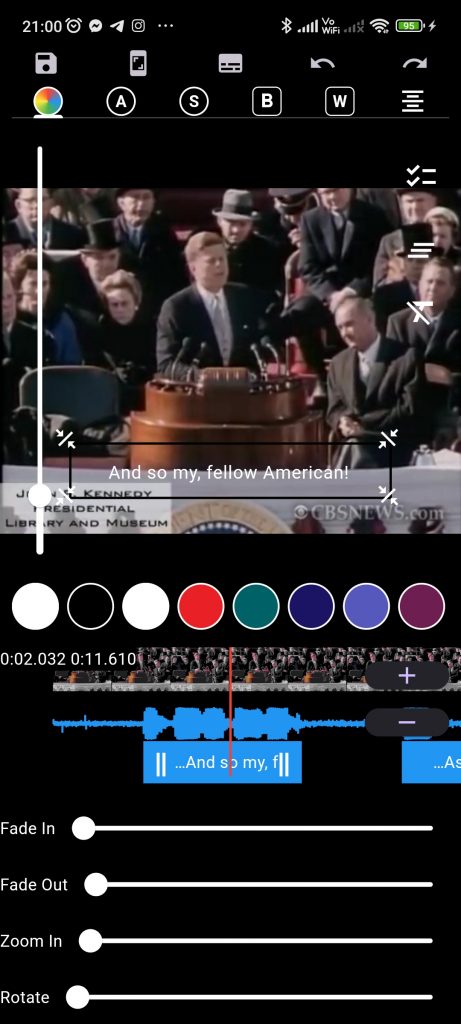
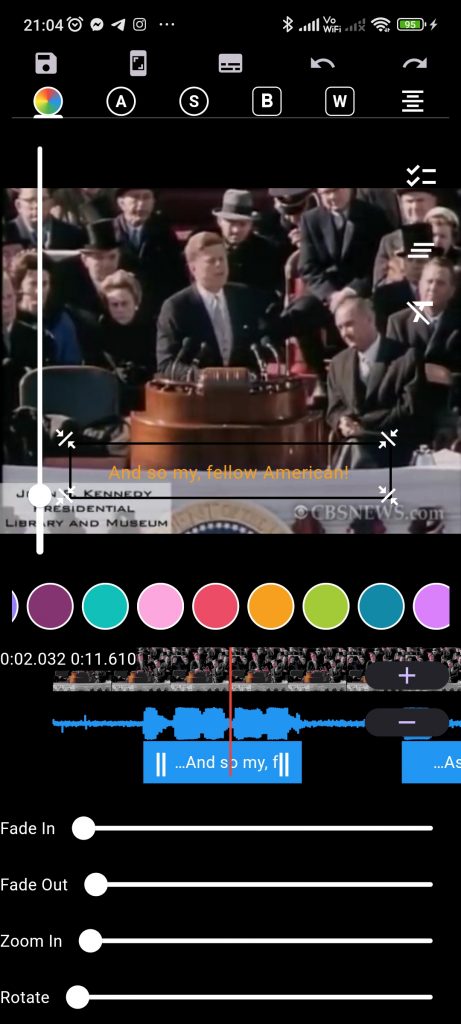
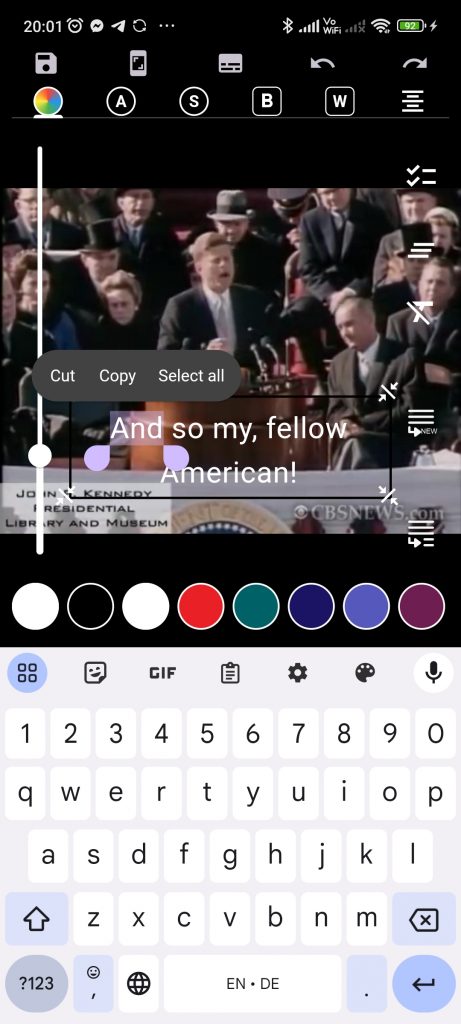
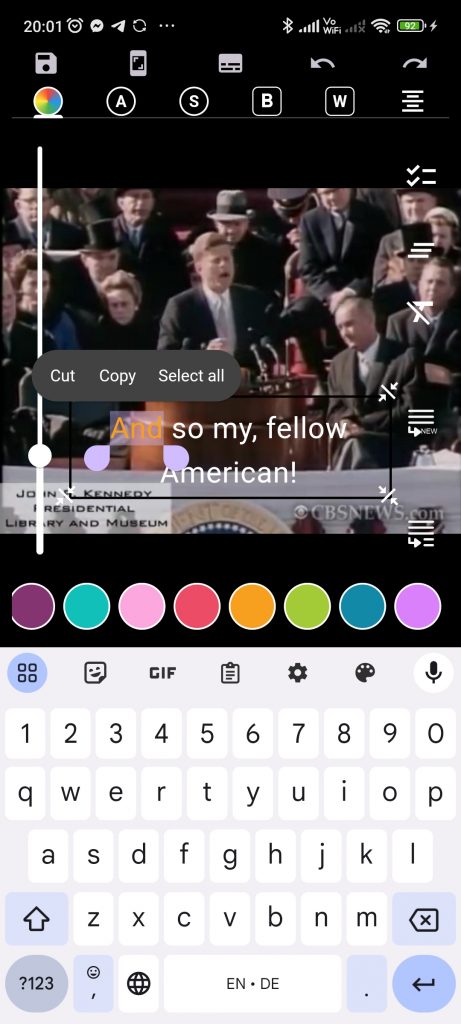
Custom Stylize of parts of the sentence:
to stylize part of the sentence select the word and give it a custom color or size
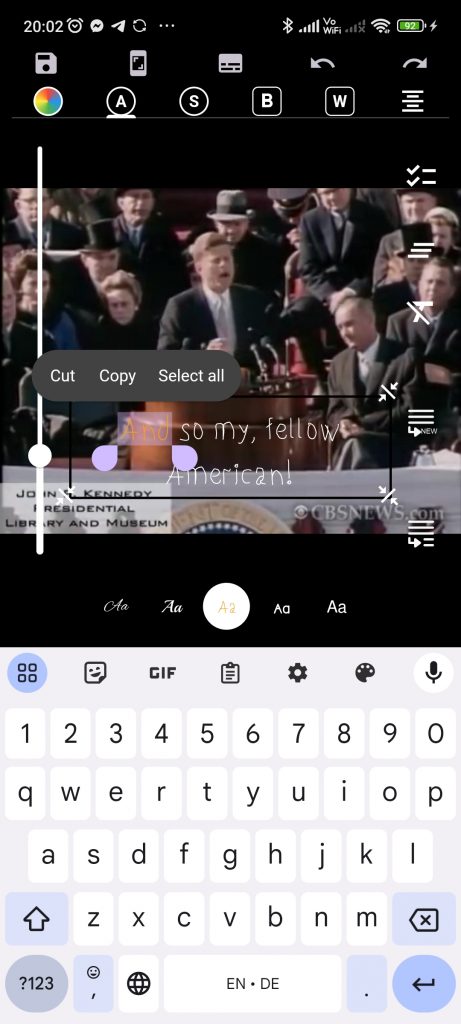
Changing Font:
To change the font family select the second tab in upper section and then select the desired font
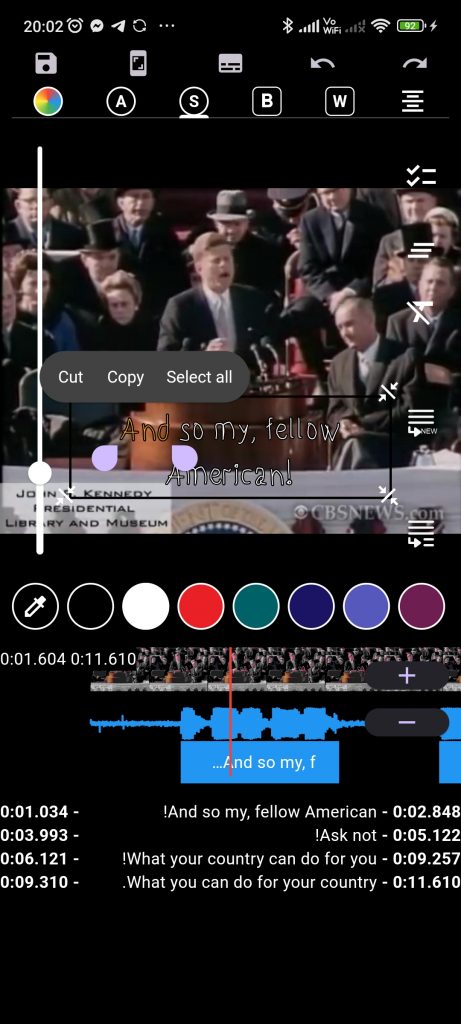
Adding Stroke:
Stroke could be added from the third tab where you could control the stroke width and the color
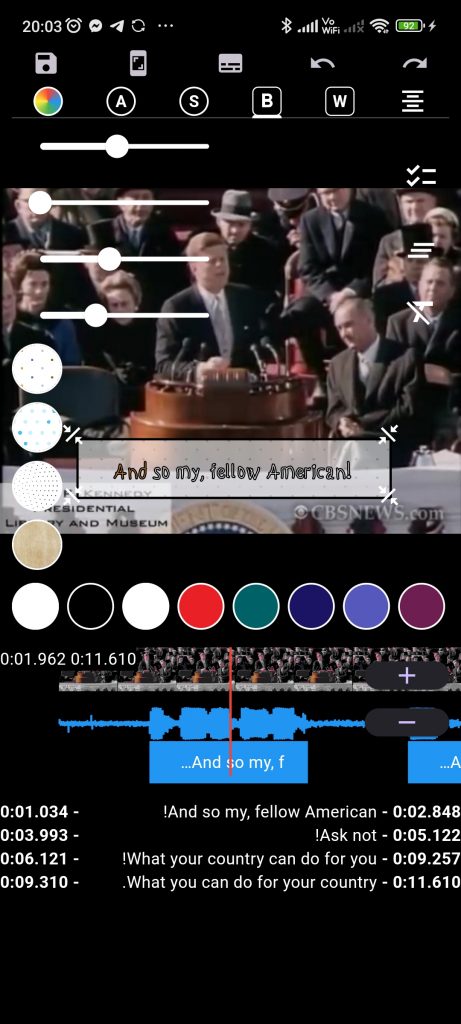
Adding Sentence Background
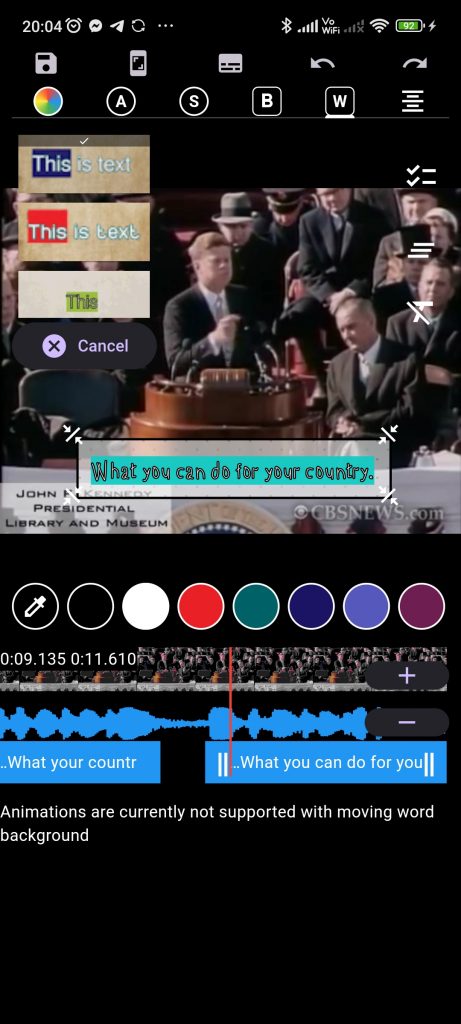
on the forth tab you have options to stylize the sentence background.
Subtitle effects:
if you click on the subtitle in the time line, the subtitle story lines will disappear and it will be replaced by subtitle effects. these effects could be applied to each subtitle to control Fade in , Fade out, Zoom in Zoom out, Rotate, Move up and Move right. all of these effects are compatible with each other and could be applied in a combination to create a mixed effect.
Moving Word Effects:
on the fifth tab you can find the moving word effects, where you can apply some cool effects on the sentences which highlight the current word in the sentence.
if you choice this effect, the Subtitle effects will be disabled.
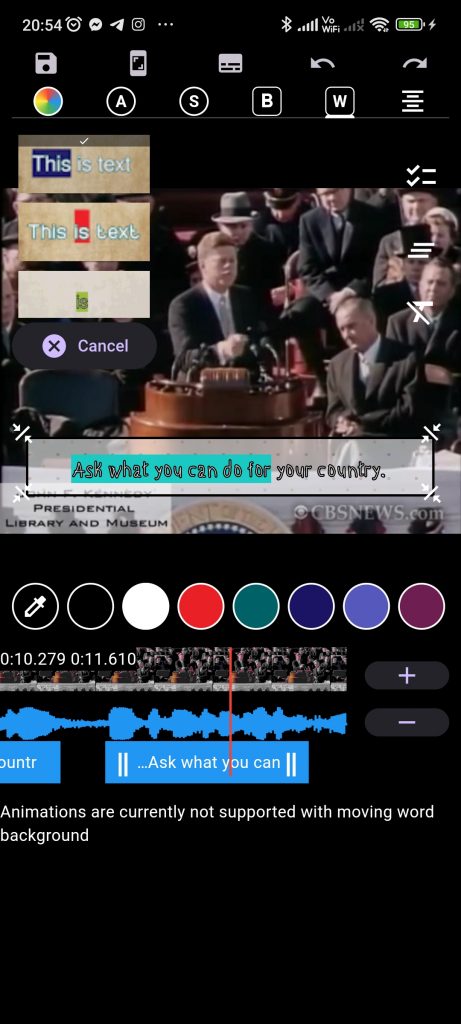
5. Helper Functions
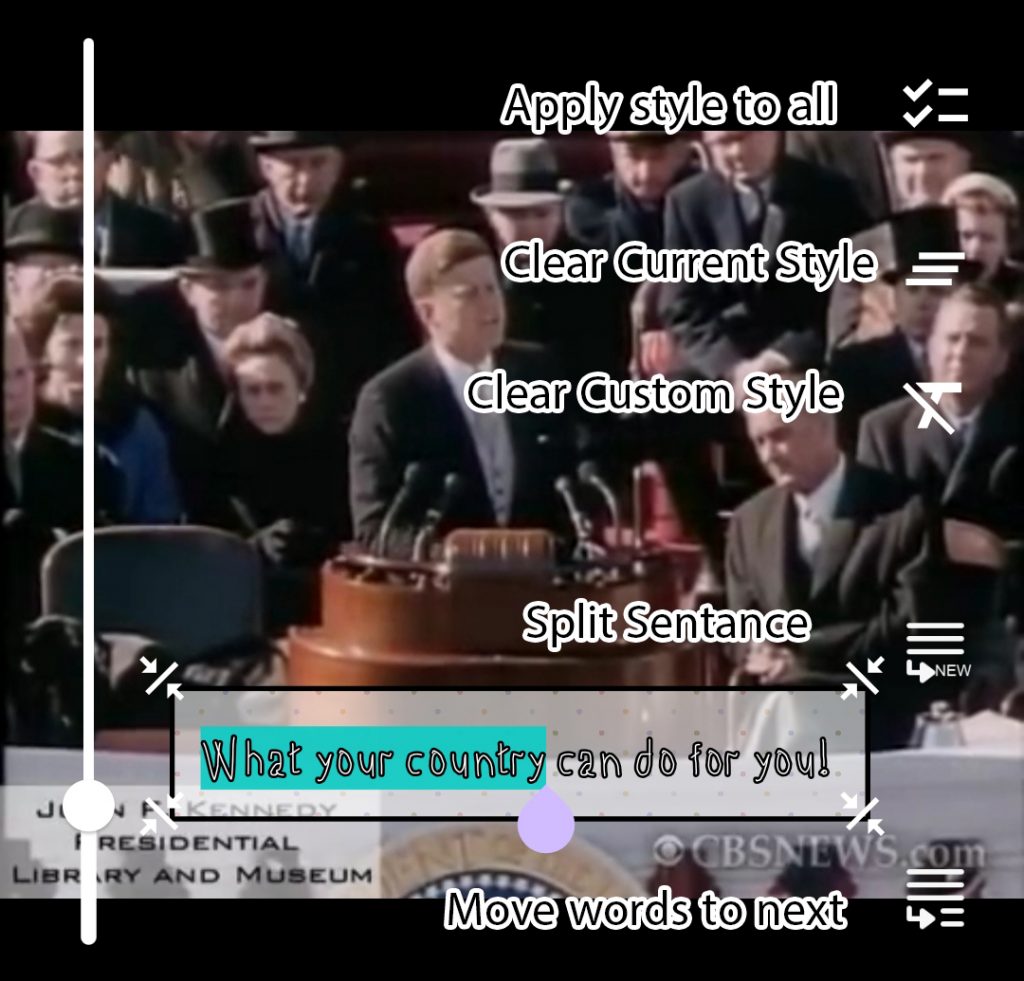
Apply Style to All: apply the current style to all the sentences.
Clear Current Style: clear the current style and revert to default.
Clear Custom style: if any custom style is applied. it could be cleared here.
Split Sentence: if the sentence is too long you can split it into to from the current cursor location.
Move Words to next: instead of splitting the sentence into 2 subtitles you can move all the words behind the current location of the course to the next subtitle.
Upper Functions:
Save Video: after you are done with the video it is now time to export the video. simply click on the save icon and choice if you want to share the subtitle or not to start exporting the video.
Save Screenshot: AI Cap gives you the option to save screen shot to be used for the cover image.
Export Subtitle: in case you are interested into generating SRT file to be used else where or later imported again into AI Cap.
Undo: to undo your action
Redo: if you want to redo your action